.svg "Rudd-O.com")


 Perfboard assembly, top.jpg
Pure, uncompressed, digital music, thanks to ESPHome and Music Assistant
Push bit-perfect low-latency music via fiber optic directly into your sound system — all for less than $30.
Our world has come a very long way from the analog days; music is more present in our lives than ever. For most people, the experience of music is perhaps two or three taps away — eons away from how much of a ritual it was to get some music going at home just fifty years ago. The quality of sound (not music! that is a wholly different article) has leveled up enormously as well.
But often convenience comes at the expense of quality. You can tap -tap-tap on your phone to get to music playback — but it'll sound like a tin can. Maybe you have a decent Bluetooth speaker, or an expensive Sonos setup — but that's not necessarily going to be two taps, nor will it be high quality (though some will argue Sonos sounds good — it's a preference, I suppose). At the highest end, there are complex preprocessor + amplifier + monitor speakers that can set you back 5 or 6 figures... but those can be even more cumbersome to use, and often have digital stages (such as Spotify, AirPlay or Sonos "inputs") that are hellishly defective.
The truth is that we live in a world with near-infinite choices for music enjoyment, and there are many market offers that allow you to play digital music (or, as we know it in the Current Year, music). But all of them come with compromises:
- Not many will do it losslessly, especially from source to DAC. Many use MP3 or AAC as music transport, and decode on-device; anything Bluetooth is automatically out.
- Not many that will let you use the high-end DAC of your choice. Many ship a DAC and only have analog outputs. Cool if you have car speakers on your porch ceiling — but if you want a choice of DAC, nope.
- Fewer still which will let you do precise multi-room audio sync. The few commercial options which do this almost always lock you into their ecosystem in one way or another.
- A lot of very high-end sound hardware which has stellar DACs has other problems — maybe their AirPlay or DLNA support is buggy, lags several seconds, or experiences dropouts. With most of this equipment, you also tend to have near zero control as to what kind of audio format these devices want as input (many just support MP3 / AAC, or their support for FLAC / WAV is terrible to the point of crashing). If I tell my Music Assistant to play something on my Marantz preprocessor, it can be up to 20 seconds until the first sound comes through the speakers.
Well... you don't have to live like this.
- You can play your own choice of high definition, lossless material,
- using the open platform Music Assistant — in other words, almost limitless choice for source material,
- output directly to your DAC or choice of home theater,
- do it all with very low latency,
- optionally synchronize playback to multiple rooms,
- have all the necessary audio gear set itself up automatically for playback or go to sleep, all at once,
- and ensure at no step of the sound transport pipeline the material will be altered by any stage?
This is possible thanks to five key facts:
- Digital audio can be transferred fully digitally and losslessly, if you use the right format and medium. And that exists. It's called the Sony / Philips Digital Interface (short: S/PDIF). This interface supports lossless stereo audio at a sampling rate of 48 KHz and a dynamic range of 16 bits — commonly know as CD quality and tested in reality to be beyond what almost any human ear can resolve. (Dolby Digital / AC3 is also supported, but this transport format is not lossless). While there is an electrical transmission standard for S/PDIF, typically in consumer devices you'll see TOSLINK instead — the emitter is a red LED, the receiver is a similar device, and the sound travels via optic fiber. For a 1980's technology, it's pretty futuristic, eh?
- As of quite recently (thanks to John Boiles and Keith Burzinski), you can abuse a microcontroller's I²C interface to bang a bit-perfect S/PDIF signal through a lightbulb. In other words, a $4 microcontroller can now receive lossless audio via Wi-Fi, then transform it into an S/PDIF signal — with almost no latency added.
- Music Assistant is shipping support for multi-room synchronized audio as a new protocol called Sendspin; Sendspin, unlike other multi-room audio protocols, can send music 100% losslessly (think WAV or FLAC, rather than psychoacoustic lossy compression like most implementations of Apple AirPlay). There are some very rare circumstances in which Sendspin can lose or alter a bit of the sound, but those happen exclusively when a desync event takes place (you just had a noticeable network dropout at home).
- You can delete any sound processing (limiting, volume compensation, DSP) directly in the Music Assistant settings for any player. It's not recommended by the Music Assistant folks to disable volume compensation, because many music sources clip "from the factory" — but if you know your music source doesn't clip, you can turn it all off.
- For low latency and quick responsiveness, you have to avoid big buffers. Cloud sound source usually means big buffer. Implementations of popular transports such as AirPlay, DLNA, Spotify or Sonos usually have big buffers too. Big buffers are in use because they help with the worst possible network conditions; meanwhile, you, Big Internet Spender with 3 ms ping, 1 gigabit, and routers that look like robot spiders from the Techno-Cretaceous era, must live under the tyranny of rural 3G hotspot Spotify enjoyers. But you can avoid big buffers — if you go local for your transport.
Best of all, you don't have to buy an expensive product to get it all; you can simply build your own, for very little cash — and today I'm going to show you how.
Let's get started
We will build an elegant, discrete digital audio bridge:
- It will be powered by an USB charger, hooked to your sound system via fiber optic, and easily hidden behind your living room furniture.
- Its job is to stay out of the way of your music while being highly responsive to your commands.
- It will receive music via Wi-Fi from Music Assistant, then pipe a perfect, low-latency copy of that music straight through the TOSLINK fiber optic into the highest-end equipment you care to own — from then on, however your music ends up sounding, will be exactly as good as your DAC, amplifier and speakers.
- If you have more than one stereo or amplifier with TOSLINK input (e.g. one on each different room in your home), connect a bridge to each stereo in each room, and enjoy perfectly synchronized, lossless digital music everywhere.
- Pro tip: you can also synchronize run-of-the-mill speakers in your home to this bridge, even if you don't have S/PDIF or even an amplifier to power them; simply buy a Louder ESP32 (built-in DAC and amplifier), set it up with the experimental Sendspin support, and the Louder ESP32 will let you synchronize its playback with the bridge.
Here are the steps you'll follow to build the digital audio bridge:
- Get the parts you need to build the bridge.
- Put them together.
- Program the bridge with the software it'll use.
- Make an enclosure to hold and protect the bridge from abuse.
- Add the bridge to your network, music and home automation systems.
- Hook the bridge up to your sound system, and optionally configure it to fully integrate with your home.
Bill of materials
You'll need:
- One fairly standard 18x24 perfboard with 2.45mm pitch (0.1").
- The board I am using has dimensions 70mm by 50mm.
- An ESP32-S3-WROOM DevKitC1 v1.1 — with USB type C ports, and an RGB light visible around the center of the board.
- Here is a (non-affiliate) link where you can buy one.
- Buy the N16R8 variant that does not use the external antenna.
- Make sure the variant already comes with soldered pin rows; soldering pins yourself can be tricky, and trickier still to shove them straight into a perfboard afterwards.
- You could purchase another ESPHome-compatible board, but you have to make sure it has at least 8 MB of PSRAM, can run at 240 MHz, and it's on you to adapt both the code and the enclosure laid out later in this project.
- The ESP32 I use is 63.75mm long (from top of antenna to bottom of board, USB type C ports excluded) and 28.15mm wide (side to side).
- Here is a (non-affiliate) link where you can buy one.
- A 0.1 μF bipolar capacitor (shaped like a disk). These are incredibly common and have the code 104 printed on them.
- A DLT1150a TOSLINK transmitter diode.
- Here is a (non-affiliate) link where you can get one.
- Get the transmitter variant. Allegedly there is a difference between transmitter and receiver, but I got both and I couldn't tell from just looking at them (I also couldn't tell by testing them, because I accidentally fried the first batch I got, the magic smoke went poof, and that was that).
- An USB type C charger (the simplest charger will do), and a type C cable.
- A TOSLINK S/PDIF optic fiber cable.
- Some relatively thin insulated wire to solder it all.
- Eight (8) M2×8mm screws (if you choose to build the custom enclosure).
All of this will set you back less than $30 per unit (perhaps with shipping on top) if you hit the good ole' AliExpress.
You'll also need the following tools and supplies: solder, soldering iron, flux, cleaning agents such as IPA, fume extractor, non-heat-conducting tweezers, and loupe / light. If you opt into the custom enclosure, you'll also need a screwdriver capable of screwing those M2 screws.
Putting the hardware together
Now it's time to put it together. Here is how the prototype of the circuit looks, getting installed on the perfboard:


And here is how it looks from the bottom:

Here is how the components go on the perfboard:
- The corner pins of the ESP32-S3 must be inserted into the following perfboard pins:
- A17
- A07
- V17
- V07
- The DLT1150a diode's pins nestle in the following pins:
- A03
- B03
- B04
- B05
- A05
Insert the ESP in the directed space. The ESP's pin tips will be soldered flush with the bottom of the perfboard. Therefore, after inserting all the pins of the ESP32 into the perfboard at least a few millimeters in, flip the perfboard so the chip faces you, then push the perfboard down onto your table, so the perfboard rests on the table and the tips of the pins are flush with the holes.
You will solder (from the bottom of the perfboard, id est ESP upside down) at minimum the following ESP pins to the perfboard:
-
3V3— inserted into hole V07GND— inserted into hole A07GPIO47— inserted into hole F17- Make sure the solder joints are sturdy and solder flowed to the other side of the hole.
- You want to solder a few more pins to ensure the three solder connections listed above don't break as the ESP is plugged and unplugged from USB over time. Just make sure there is no electrical connection between solder pads.
Here are the points you must solder — in magenta you'll find the required ones (which will later be connected) and in light blue the pins that would be ideal to solder additionally (for maximum holding strength).

After soldering the ESP as directed, insert the DLT1150a diode in the indicated space, then flip the board again to solder it. Solder all five pins for strength. These pins do not need to be flush with the board — the pins must protrude through the holes, and you want the diode casing (black) to rest flat and squarely on the perfboard, with its bottom edge aligned to the perfboard edge, and its "chin" (the area that protrudes past the edge of the perfboard, when seen from above) parallel to the perfboard edge.
Here is a zoomed version of the pins you must solder (colored red):

And here is every component already soldered. Note how parallel the edge of the DLT1150a is to the edge of the perfboard. This is important because the tolerance for the position of the diode plays into the fit of the circuit in the final assembly — and the final assembly determines how sturdy this connector will be.
Next, you will connect the diode and the chip. Here are the connections you must perform:
GPIO47(hole F17) to the data input (VIN) of the diode (hole B03).GND(hole A07) to the ground (GND) of the diode (hole B05).3V3(hole V07) to theVCCof the diode (hole B04).
Visualized using imaginary wires:

Finally, hook up a disc-type (bipolar) capacitor of 0.1 uF (capacitor code 104) between the VCC and GND pins of the diode.
Forgive me because this is not my best work, but the whole working circuit ultimately looks like this:

Close calls, we can agree, on some pins being hackishly soldered! From the side it looks quite a bit nicer though — look at how the ESP32 is 100% parallel to the perfboard (and, while you can't see it from this angle, the diode is making 100% contact with the perfboard too):

Installing the requisite software on your bridge
To install the software, you can do this the hard way or the easy way. The hard way (complete with code) is explained further down below.
Here is the easy way.
- Launch Google Chrome or Microsoft Edge, or any browser that supports Web Serial.
- Connect the left serial port (when looking at the device with the chip facing you) to one of your computer's USB ports.
- Head on to here then click on Click here to launch the ESPHome Web installer.
The Web installer will show up. Select Digital audio bridge from the list of devices to deploy.

Confirm with the Connect button at the bottom of the list. A dialog will pop up, asking to select the USB port to install with — select a serial port that has FTDI or JTAG in the name (the correct port should say JTAG —both will work for flashing, but only one of them will allow you to configure Wi-Fi). Select and confirm the port.
You should see the installer dialog show up:

Click on the Install button with the arrow down. The device will begin flashing — be patient.

Once the device is done flashing, you should see the device pulse yellow on its colorful light. This means the device is ready to join your Wi-Fi network.
In addition to that, one of two things may happen:
- If you connected the bridge to the FTDI port (rightmost port, not as per instructions).
You will see a message saying Installation finished.- Either configure Wi-Fi manually (see instructions below for Connecting the device manually to Wi-Fi),
- or reconnect the device using its other USB port, and re-flash.
- If you connected the bridge to the JTAG port (leftmost port, as per instructions).
You will be presented with the dialog to configure Wi-Fi.

Enter the Wi-Fi credentials to the network in which your Music Assistant setup lives (it should be in the same VLAN, but if you know about VLANs, you know what to do).
The bridge's light should now be pulsing light blue for a maximum of 15 seconds or so. Once the device connects to Wi-Fi, you will see the light go solid blue for a few seconds, then turn off. This is your clue that your digital audio bridge is now on the network.
When the option to configure Wi-Fi didn't appear in the flasher — connecting your bridge to Wi-Fi manually
OK, your device is flashed and connected to power, at least for now. It should have spawned a temporary Wi-Fi network called digital-audio-bridge-xxxxxx. The color light of the device should be pulsing yellow, indicating that it needs to be configured.
Connect to that network using your laptop or phone. Your device will open up a captive portal (a Web page typical of hotspots that ask you to sign in). On this captive portal, write the access point SSID and password of the appropriate Wi-Fi network. Confirm the request, and disconnect from that Wi-Fi network on your personal device.
As in the previous steps, the light on the bridge should change from yellow to light blue pulses briefly, and then change to solid blue indicating the device is now on your Wi-Fi.
You're ready to put the bridge in its enclosure.
Installing the software the hard way — skip if the instructions above worked for you
Here is the hard way to do all of the above, which you should probably not go for.
Set up ESPHome in your computer, connect the device, and flash the sketch. I've made the sketch available on Github. The device has two USB ports — if one doesn't work, try the other. Note that only one of the ports (the leftmost one) will give you ESPHome logs via serial.
Assembling the enclosure
For an enclosure, you have two choices:
- Roll your own using a generic project box, for which you'll cut holes in the box and somehow stick the perfboard inside.
If this is your choice, you can skip this section altogether. - Print an enclosure custom-made for this design, using your 3D printer, in plain PLA or the filament of your choice.
We'll explore choice number b because, with the custom enclosure I've designed, (1) the connectors have support against strain (remember, both the S/PDIF connector and the USB type C connector are friction-fit, so connecting and disconnecting puts strain on the solder points), (2) the electronic components don't risk becoming loose inside the box, and (3) you get to look at the cool RGB LED in the ESP32, and easy access to its reset button as well.
Here's how you go about making your own custom enclosure:
- Download the files.
- You can pick either the 3MF 3D print file, or all the individual STEP model files, or the FreeCAD model (to export the upper box and lower box parts as STEP / STL files).
- Open the files in your slicer.
- The 3MF file is already set up to print — all you have to do is select your printer.
- If you chose to download individual STEP model files, or you made changes to the FreeCAD model, simply import the STEP / exported files for all parts into your favorite slicer.
- Orient all parts so the largest flat area of each part is lying flat on the build plate.
- Enable organic supports and enable supports everywhere — if not already enabled.
- Optionally disable top layers on the lower box (the 3MF file does this). This speeds up the print and saves filament by removing solid layers that won't be visible anyway.
- Then print using your favorite filament (before printing, ensure your printer and filament combination is dimensionally accurate).
- Don't forget to remove the supports before the next step. The lower part of the enclosure will have supports inside the USB type C connector hole. The upper part of the enclosure will likely have supports under the angled S/PDIF flap as well as in the screw holes. Remove the lower part's cable hole supports, the upper part flap's supports, and punch the screw hole supports out through the other side.
- Finally, assemble.
- Pro tip: if, during assembly, your hardware does not fit in the enclosure models, don't despair or go wild desoldering everything just yet. Try one of two things:
- Make small subtractive adjustments to the printed parts using an X-Acto knife.
- Download the parametric FreeCAD file instead, tweak the Data parameter spreadsheet until you get parts that fit your hardware (the available parameters are explained in the spreadsheet), then export the needed parts.
- Pro tip: if, during assembly, your hardware does not fit in the enclosure models, don't despair or go wild desoldering everything just yet. Try one of two things:
Here is how the box looks like on the build plate:

As you can see, there are two parts to this box. On the first part —pictured on the left— you'll screw in the perfboard using M2x8mm screws; it really goes in only one way (the bottom of the perfboard with the solder joints should face up), so fit it carefully before screwing it in. The second part fits like a jigsaw puzzle piece atop the first part, and is also screwed to the first part using M2×8mm screws.
Here's how the fitment of the electronics should look like in the lower part of the box. Note how the S/PDIF connector fits snugly in the hole, neither recessed nor protruding. Not bad, eh?

Once you're there, you can screw the perfboard (using the four corners for screw holes) into the lower box.
Move on to preparing to cover the lower part of the box with the upper part (the lid). Tip: the through-holes for the screws are a little snug; before screwing the upper part to the lower part, try to get the threads started on all four holes of the upper part.

Now fit the upper part into the lower part, then finish the job by screwing all four screws down.
Et voilà! The box is fully assembled.

That went well!
Adding the bridge to your music and home systems
Let's integrate your device with your network and sound system. You will:
- Add your bridge to Music Assistant.
- Optionally, add it to Home Assistant.
Getting your bridge into Music Assistant
This is, I swear, probably the easiest part of it all.
Open up Music Assistant somewhere, then navigate to the Settings -> Players section of your Music Assistant setup (you will need to be logged in as administrator).
You should see the player listed:

You should see Digital audio bridge among the players; if you do not, there's something awry with your home networking.
That's it. You should now be able to play music to it (although nothing will sound, because the device isn't actually hooked to a stereo).
In that screen, rename the bridge (you can find options in the three dot menu to the right of the icon). For example, in my home, it's named Living room music player now.
Go back to the main screen, activate the bridge player, and queue up some songs on it. Test that the Play button changes to a Pause button when you play something. Then pause it. Check that, during playback, the DLT1150a diode lights up red — this is a positive sign that the device is in fact transmitting audio.
(Optional) Ensuring bit-perfect playback
Music Assistant's default settings for each player are respectful of the quality of your music, but they also take the liberty of performing volume normalization for music tracks. This is often desirable (especially if you switch between music genres or epochs), but it won't give you bit-perfect playback if that is truly what you're after.
Here are the main settings you must turn off:

You'll want to turn off crossfading. You also want to turn off volume normalization (since this lowers the volume in the digital domain, causing you to lose a bit of dynamic range resolution) and limiting. Personally, I would not turn off the limiter, because many digital sources produce audio that actually clips — but I wish there was a mechanism to tweak the limiter to -0.5 dB rather than the -1.5 dB Music Assistant uses. Once settings are changed, scroll down and push the button to save them.
Now ensure no DSP (equalizer) is enabled. This is easy — it's the default, so if you did not do anything to enable it, you don't have to think about it.
There is one more thing to do in order to ensure bit-perfect playback —volume— but that depends on the capabilities your audio gear, and will have to wait until you hook the bridge up to the stereo.
(Optional) Adding your bridge to Home Assistant
Also fairly simple, provided you have Home Assistant setup.
Open Home Assistant (as administrator) and navigate to Settings -> Devices & Services. The first thing you will see is a box listing the new device.

Click on Configure and the device will be added.
Your audio bridge will now appear under the ESPHome section below, and you can enable / control entities of the device, including (but not limited to) the media player.
Hooking the bridge up to your sound system
Finally, we get to the point where you get to enjoy actual music. It's a one-time cost, but that cost was surely worth it.
Connections needed
Place the bridge in a location of your choosing where both the USB type C cable will reach it from the designated wall socket it'll be plugged to, and the TOSLINK cable reaches the slot in your preamp / stereo / sound bar (typically in the back of your sound system).
Connect the TOSLINK cable to the bridge, then to the sound system. The cable should've a satisfying click when properly nestled into each socket.
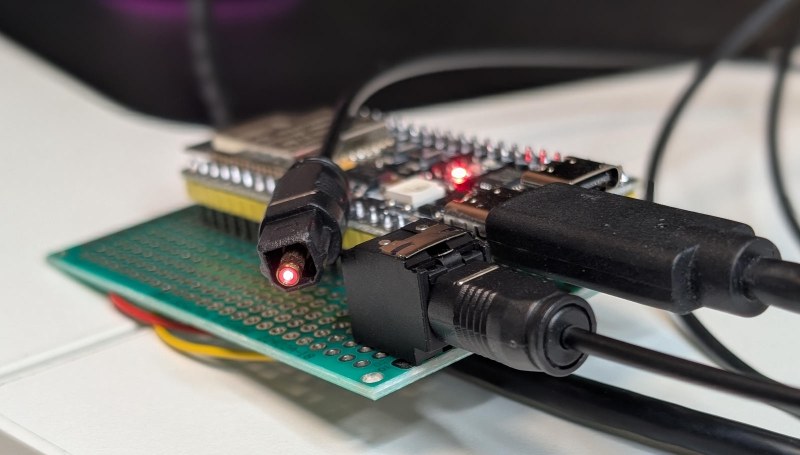
Connect the USB cable to the bridge, then to the USB wall wart power supply, then the wall wart itself to a mains power socket. For reference, here is how my now-connected bridge looks like — the bridge is in focus, while the TOSLINK cable travels up from the bridge to the receiver and plugs right in:

I hope you do a better job of tidying up cabling than me!
Wait until the bridge connects to Wi-Fi.
Sound system setup and test
Power your sound system on.
Most sound systems require you to "input select" the S/PDIF / digital / TOSLINK / optical input to hear any sound coming through the TOSLINK cable. If your system needs to, do it now. Consult your equipment's manual if you must.
Then, if your sound system has an independent volume control — most systems do! — you need to do two things:
- Ensure the system is set to a reasonable listening volume.
- Change the volume of the bridge in Music Assistant to 100%. Do it now, or else the music will sound extremely quiet. As you might have guessed, the bridge player has a fallback software volume control (nominally set to 50%) but you lose resolution in the digital domain if it's set to anything other than 100%. This is why systems with analog volume controls work best when the volume is regulated at the system, and the player is best left set to 100%.
Now hit the Play button in Music Assistant.
You should hear the selected track through your stereo.
Integrate your sound system with your home
OK, so now you have something that plays bit-perfect music directly to your stereo / your soundbar / your massive 11.2 home theater system. But now you have to go switch the speakers, the receiver, the sound bar, on and off, like a caveman. And the volume knob in Music Assistant only lowers volume (from the ideal 100% setting), rather than letting you raise the volume of your sound system.
Fortunately, the Music Assistant people thought of this and developed the perfect feature to solve exactly this problem. It's called player controls. Assuming you have a media player and/or a switch in your Home Assistant setup that governs the state of your music system, you can assign these in Music Assistant to your audio bridge.
First, you'll "import" those key entities into Music Assistant. Head on to its settings, then go to Providers. Find the Home Assistant plugin provider on the list of providers and go into its settings. I'll show you how my own HA settings look here:

What you have to do in this screen is select the player controls (volume, power and mute) that represent the controls for your sound system. By way of example from our home:
- The master switch that powers everything on and off in our home is called Media center (a group switch that controls the receiver and the speakers simultaneously). I'll show you a bit of code below.
- The receiver connected to our audio bridge, which provides volume and mute (the two things I want to control when I'm listening to music) is called Marantz AV7702mkii.
Once these entities are selected, save the settings (scroll down for that).
The second step is to assign them to the audio bridge. For that, go back to the Settings -> Players screen, and open up the audio bridge settings from there. Here are the relevant settings:

Under Player controls, select the power control entity you imported from Home Assistant. Additionally, if available, select the volume control and mute control that will supplant the volume and mute controls from the audio bridge.
Now save the settings.
From this point on, the power, mute and volume controls of the audio bridge in Music Assistant will control your audio gear instead of making any changes to the audio bridge directly.
This is wonderful. Among other things, this means you can have arbitrarily complex things happen when you start playing music. For example, this is what our master switch (Media center audio) does — it's a template switch in our Home Assistant configuration:
# Snippet of Home Assistant configuration.yaml.
template:
  - switch:
    - icon: mdi:speaker-play
      name: Media center audio
      unique_id: media_center_audio
      default_entity_id: switch.media_center_audio
      state: |-
        {{
          not is_state("media_player.marantz_av7702mkii", ["off", "unavailable", "unknown"])
          and
          is_state("switch.living_room_speakers", 'on')
        }}
      availability: |-
        {{
          has_value('switch.living_room_speakers')
          and
          has_value('media_player.marantz_av7702mkii')
        }}
      turn_on:
        sequence:
        - action: media_player.turn_on
          target:
            entity_id: media_player.marantz_av7702mkii
        - action: switch.turn_on
          target:
            entity_id: switch.living_room_speakers
        - delay:
            seconds: 2
        - action: media_player.select_source
          target:
            entity_id: media_player.marantz_av7702mkii
          data:
            source: "Music Assistant"
      turn_off:
        sequence:
        - action: media_player.turn_off
          target:
            entity_id: media_player.marantz_av7702mkii
        - action: switch.turn_off
          target:
            entity_id: switch.living_room_speakers
The switch above is fairly simple:
- On power on, turn the receiver and the speakers on, wait 2 seconds, and finally set the receiver up to play sound from the Music Assistant source.
- On power off, simply turn off the receiver and the speakers.
With this little bit of elbow grease, I can let Music Assistant control my entire home theater — I never ever need to touch a remote control ever again. The moment I hit Play in Music Assistant, it knows to turn my home theater on and set the right source. When I'm done, I hit the power button in Music Assistant, and everything powers off gracefully.
Perfboard assembly, top.jpg
 Perfboard assembly, front.jpg
 Perfboard assembly, bottom.jpg
 Perfboard assembly, ESP solder joints.jpg
 Perfboard assembly, DLT1150a solder joints.jpg
 Perfboard, pinout.jpg
 Fully connected circuit.jpg
 Completed circuit from the side.jpg
 Box components.png
 Electronics fitted in the lower box.jpg
 Holes started on the upper part of the enclosure.jpg
 Enclosure fully assembled.jpg
 Music assistant.png
 Adding the bridge to Home Assistant.png
 The device hooked up to our preprocessor.jpg
 Music Assistant settings for bit-perfect playback.jpg
 Entities from Home Assistant imported to Music Assistant.jpg
 Player controls override.jpg
 Web installer.png
 Device selection.png