.svg "Rudd-O.com")
Success with the Epson EcoTank ET-5855 on Linux


I've found a great office-quality printer that works perfectly with Linux.
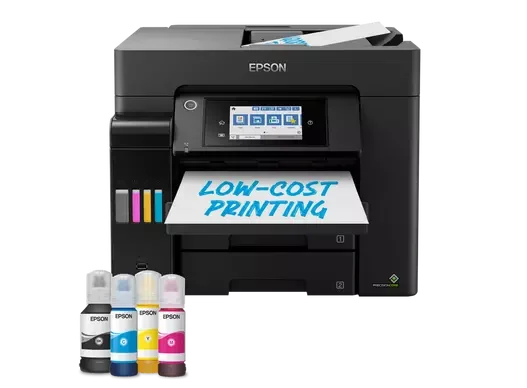
Here's the one-line summary: If you need a relatively new printer which works well with Linux, this is the printer to buy.
Let's go over how to set the printer up on Fedora quickly (this assumes Wi-Fi or Ethernet is already working on your printer, and you have technical expertise with Linux).
Setting up printing
Technically, the printer should be autodiscoverable in the network and might just work, since it supports both IPP and Mopria. You may just be able to print directly from any app, without any setup whatsoever. I know this worked just fine on my GrapheneOS Android phone.
If that doesn't work for you, or you deliberately want to set up a static print queue, here is how you do it:
- Install CUPS and make sure it's running.
- You'll have to install the Epson Inkjet Printer Driver for the printer from the Epson site.
- Sadly, the Fedora-shipped drivers will almost certainly not work (and I think they aren't shipping them anymore to begin with).
- Do note that, while the drivers require you to accept an EULA, the printer filter itself can be downloaded in source code form, so you get to see the source and compile it yourself too. In fact, I've spun my own builds of the driver (and if you know where to look — I'm not saying — you can just install these directly).
- Restart CUPS.
- Go to http://localhost:631 on your computer and go to the Administration tab at the top. You'll have to type the root password.
- Add a printer with Internet Printing Protocol, then move on to the next dialog.
- In that dialog enter
http://ip.address/ipp/print(use the IP address of your printer in that URL, obviously). Hit Continue. - Write the name and description of the printer. Remember, no spaces can be used for the printer name. Hit Continue.
- On the next dialog, select Epson. Hit Continue.
- On the next dialog, select the Epson ET-5855 Series. Hit Continue. At the next step, the print queue should be set up.
If Epson printers aren't listed at all during setup, you may have success finding the specific PPD file of the printer (at the point where CUPS gives you the option to select a concrete PPD file) under a folder in /opt. I didn't have this issue because my own driver package build places the PPDs under a subfolder in /usr/share/ppd.
That's it. From the printers list (top tab) you can now select Maintenance and Print test page to confirm everything is working. You can also set defaults such as paper size and duplex mode.
Note on SSL
If the printer still won't work, and the queue indicates the printer fails to be contacted or is not found, you probably have to go to the printer queue, and from the Administration drop-down select Modify printer, from which you will need to change the URL of the printer to https://ip.address/ipp/print (note the bolded s in https).
I have not personally tested that the printer works without HTTPS, because I set my own printer up right out of the box with my own root CA and certificate instead of using the printer's own SSL certificate. I do know that CUPS downloads and saves the certificate of the printer upon first attempt to connect using HTTPS. You shouldn't have to do this at all, at least in my opinion.
Setting up the scanner function
Printer supports eSCL so it's straightforward to set up. It should work out of the box with all SANE scanning apps without any configuration, assuming your machine is on the same LAN, subnet and VLAN. If it does not, follow these steps:
Install the sane-backends package and your favorite scanning package (simple-scan and XSane are my favorites). Test that the scanner is found with at least the Simple Scan application, or scanimage -L command.
If it does not appear, we'll move on to more drastic measures. Change the file /etc/sane.d/airscan.conf to contain the following (replace ip.address with your printer's IP address):
[devices]
"Epson ET-5855" = https://ip.address/eSCL
[options]
discovery = disable
[debug]
[blacklist]
Note that this change will entirely disable autodiscovery of other network scanners.
Try to find the scanner again using the same techniques described above.
Features: many!
This printer is an absolute banger.
- It's hellishly fast to print.
- It's automatic duplex, both for printing and for scanning. You can place 50 double-sided sheets in the automatic document feeder (ADF), and scan directly on Linux using your favorite scanning app that supports duplex scanning.
- It uses tanks of ink instead of cartridges. Therefore, use of ink is super cheap.
- Everything on the printer can be configured via the Web by accessing
https://ip.addresson your Web browser (although you'll have to accept the self-signed SSL certificate). The user name isadminand the default password is printed below the scanner unit lid. - You can scan to network drives (SMB or FTP) directly from the front panel. Set that up via your Web browser. It's extremely useful to set up presets, so that you can get from paper placed in ADF / scanner glass to file on file server with maybe three button presses on the front panel.
- The printer works fine without Internet connectivity, and doesn't require it to set up. You also don't need any kind of app to set the printer up (an evil pattern that has become quite common these days).
- You can configure your own SSL certificates on the printer, complete with root and intermediate CA. Game-changer for enterprises and other places where SSL / TLS is required. You can also configure the printer to require SSL from clients, should you need to.
- There are two trays of paper, so you can have both envelopes and paper sheets ready to go. There is also a manual paper feed!
- The printer can use an NTP server to auto-set its time and date.
Based on my demonic experiences with Hewlett-Packard multifunction devices, Linux, and their damned approach to quality + device obsolescence, I am extremely happy with having tossed their old printer trash to the curb, and replaced it with this Epson device.
About the only thing that would bother me from this printer is that I am almost certain it prints the tracking dots.